
【iPhone (iOS)】
🔹 Method 1: Check Your EID in Settings
Settings ➔ General ➔ About ➔ Find EID
✅ If a 32-digit EID is displayed: Your iPhone supports eSIM.
🔹 Method 2: Check via the Dial Pad
Dial: *#06#
The Device Information screen will appear:
✅ If an EID is displayed: Your iPhone supports eSIM.
➔ If only the IMEI is displayed: Please purchase a physical SIM card instead.
※ Some iPhone models purchased in China, Hong Kong, or Macau may not support eSIM. Please check your device model before purchasing.

【Android Devices】
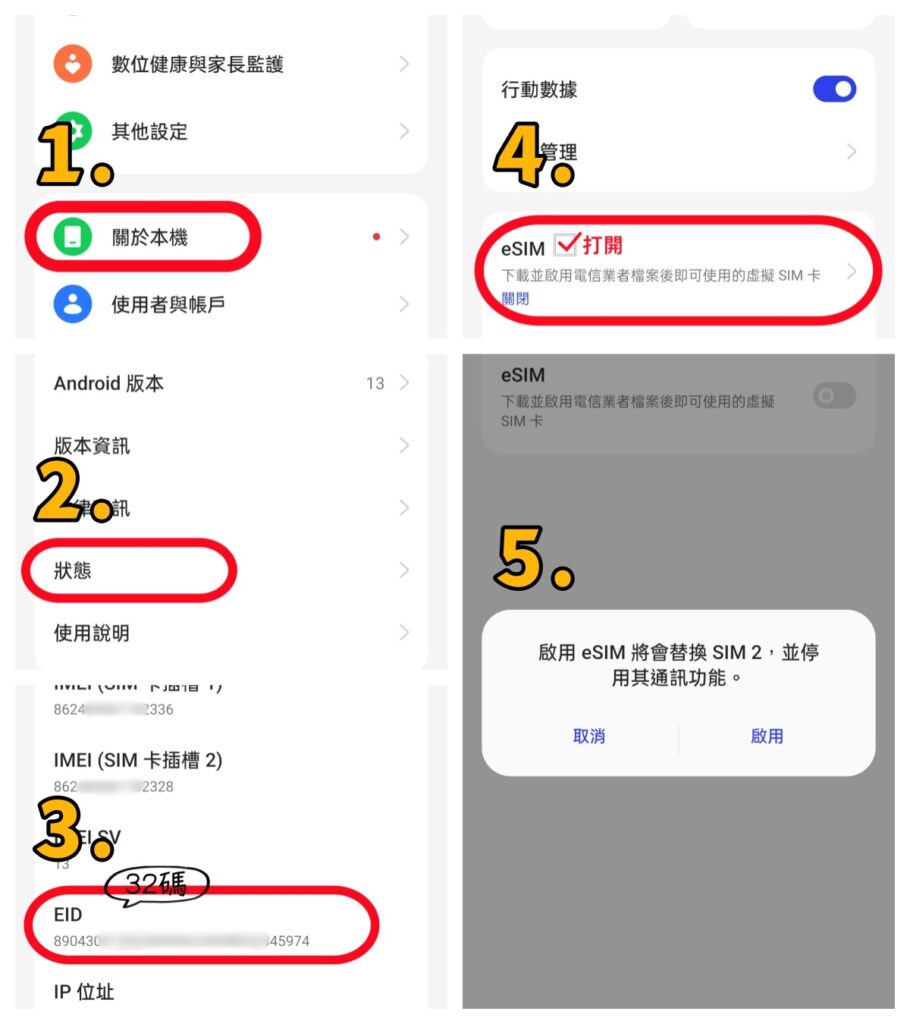
The operation steps may vary depending on the smartphone brand and model. The following example uses OPPO A79.
🔹 Method 1: Check EID through Settings
① Go to 【Settings】 ➔ 【About device】
② Tap 【Status】
③ Check whether an EID (32 digits) is displayed
✅ EID (32 digits) displayed: The phone supports eSIM
❌ No EID displayed: Please purchase a physical SIM card instead
🔹 If there are no 32 digits shown after EID, the eSIM setting is usually disabled. Please follow the steps below to enable eSIM.
④ Go to 【Settings】 ➔ 【Mobile Network】 ➔ Turn on the disabled eSIM ➔ Check that the 32-digit EID appears after EID (as shown in Step ⑤ below)
⚠️ Important Notes
The settings location may vary depending on the Android brand and model. If you cannot find the EID, please search for “EID” or “eSIM” in 【Settings】.
Before purchasing JB Voice eSIM, please confirm that your phone supports eSIM and enter the correct 32-digit EID. If the eSIM cannot be activated or needs to be reissued due to an incorrect EID, a reissuance fee will be charged.