FAQ Category Important Notes Before Purchase

How to Reduce Mobile Data Usage (Instagram / Threads)

① Enable “Data Saver Mode”

Instagram App → Profile →【Settings and privacy】→【Data usage and media quality】

📌 Turn on “Use Less Mobile Data”
📌 This reduces video preloading and the loading of high-quality photos/videos.


② Limit Media Quality and Preloading

Instagram App →【Settings and privacy】→【Media quality】

📌 Recommended settings:

✔ High-quality media → Set to “Wi-Fi only” or turn off
✔ Video preloading → Limit or turn off (if available on your device)

📌 Prevents large amounts of video content from loading automatically while scrolling.


③ Turn Off Background Mobile Data (iPhone)

【Settings】→【Cellular】→【Instagram】

📌 Turn off mobile data access or limit background activity.
📌 Prevents the app from continuously using data in the background.


④ Threads (Same Account System)

Threads uses the same Meta system settings as Instagram.

📌 Recommended settings:

✔ Enable “Use Less Mobile Data”
✔ Limit high-quality media
✔ Turn off background data usage
【YouTube】 How to Save Mobile Data Usage

◆ Enable “Data Saver” mode
Tap your profile picture in the YouTube app → Go to Settings → Video quality preferences → Under Mobile networks, select Data saver.

◆ Adjust “Video Quality Preferences”
Open the YouTube app → Tap your profile picture → Settings → Video quality preferences → For Mobile networks, choose Data saver (e.g., 480p or lower).

◆ Turn off “Autoplay next video”
Tap your profile picture → Settings → Playback → Toggle off Autoplay next video.
This prevents continuous playback in case you fall asleep or forget to stop the video.

◆ Limit video preloading while browsing your feed
Tap your profile picture → Settings → Playback → Set Play videos in feeds to Off or Wi-Fi only.

◆ Turn off mobile data usage for the YouTube app
For iPhone:
Go to Settings → Mobile Data → Find YouTube → Toggle off to disable mobile data usage.

For Android:
Go to Settings → Apps → YouTube → Mobile data & Wi-Fi → Turn off Allow background data usage.

【iPhone】 How to Save Mobile Data Usage

◆ Turn off background app refresh using mobile data
Go to “Settings” → “General” → “Background App Refresh”
Since most apps don’t need real-time updates, it’s recommended to set this to “Wi-Fi” so mobile data isn’t used.

◆ Turn off “Wi-Fi Assist”
Go to “Settings” → “Cellular” → Turn off “Wi-Fi Assist.” When Wi-Fi connection is poor, the system won’t automatically use mobile data.

◆ Turn off mobile data for iCloud backup
Go to “Settings” → “Cellular” → “iCloud Backup,” and turn it off so mobile data won’t be used for automatic iCloud backups.

Is the speed of a physical SIM card faster than an eSIM?

The signal strength is mainly affected by the telecommunications company’s network infrastructure. The factors that influence the signal strength are as follows:

The distance to the base station
Presence of obstacles
Presence of signal interference
Antenna performance
Frequency band Since our company’s eSIM and SIM cards are products from Japan’s local docomo telecom company, using the same signal, the speed of our eSIM and SIM cards are the same. As for other international roaming eSIMs, there may be cases where roaming is done through smaller telecom companies, leading to significant differences in speed and coverage.

Any SIM restrictions?

【 iOS Device】

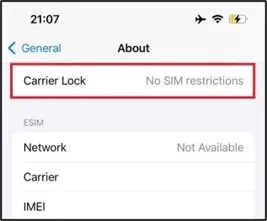
「settings」➔「General」➔「About」➔「Carrier Lock」 ➔No SIM restrictions

【 Android Device】

You cannot determine this directly from the mobile phone. Please check with the place of purchase or the carrier you have a contract with.
SIM lock regulations vary by country. In Taiwan, most phones are not SIM-locked.Devices purchased in countries like Japan or the United States are more likely to have SIM lock issues.
📢If you have used SIM cards from different countries or carriers, the device is likely not SIM-locked.